

I have “Inbox Zero” aspirations but an “Inbox Infinity” reality. My Gmail account has been around since the early Gmail beta, for nearly 21 years and some 455,000 still unread emails
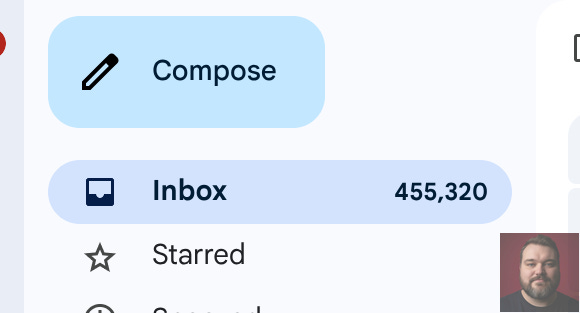
Somewhere between signing up for a 10% discount on socks in 2014 and handing my email over to every SaaS tool I’ve ever trialed, my Gmail became a wasteland. I was drowning in “newsletter” updates, “last chance” sales, and those sneaky emails that look like personal correspondence but are actually just trying to sell me enterprise software.
The worst part? The unsubscribe process. It’s a minefield of dark patterns. You click a tiny link buried in 6pt font at the bottom of an email, and it takes you to a page that requires you to log in (I don’t remember my password!), or asks you to uncheck 50 boxes, or just gives you a 404 error.
I was sick of it. So, I decided to fight fire with fire. I built a robot to fight the marketing robots.
Meet gmail-ai-unsub
I spent a day “vibe coding” with Cursor (an AI-powered code editor), Claude, and Google’s new Gemini experimental models. The result is a CLI tool that ruthlessly cleans your inbox using the latest in AI and browser automation. It’s written in Python, uses LangChain, a dozen models, browser automation, and the Gmail API.
It’s open source, it’s effective, and it’s completely overkill. And I love it.
How It Works: A Two-Stage Rocket
I didn’t want an AI just blindly deleting emails. I wanted control. So I designed this as a two-stage system that uses Gmail labels to manage state.
Stage 0: Setup
Install (if you don’t get it from source, which at this stage, might be wise)
# pipx
pipx install gmail-ai-unsub

# uv (I recomend installing UV)
uvx install gmail-ai-unsub
Be sure to read the README.md file for instructions on setting up an app with Google in the Google Cloud Console, granting it Gmail permissions, and properly setting up environment variables. Until I get this app reviewed by Google you have to do this yourself for now.
Now run setup:
gmail-unsub setup
This will take you through a bit of a wizard.
Stage 1: The Scan
First, the tool scans your inbox. It grabs the text of your emails and feeds them to a Large Language Model (LLM). You can use Google’s Gemini, Anthropic’s Claude, or OpenAI.
I’m using Google’s new Gemini models because they are incredibly fast and cheap for this. The AI analyzes the email to decide: “Is this marketing?”
If it is, it applies a label: Unsubscribe.
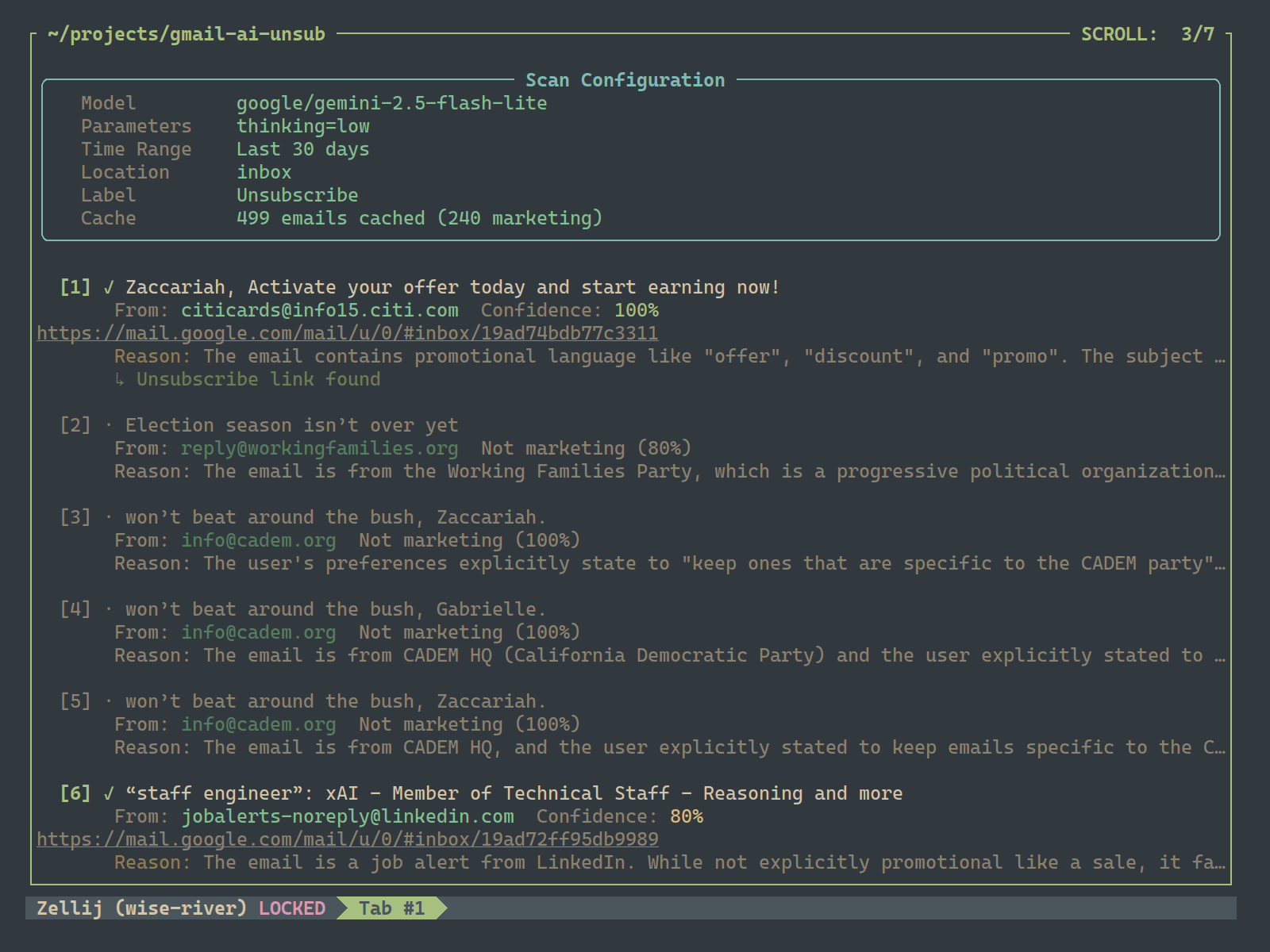
It even gives you a reason why it flagged it. “Promotional content,” “Discount offer,” etc. It’s surprisingly good at distinguishing between a newsletter I actually read and “CYBER MONDAY EXTENDED AGAIN.”
Crucially, this gives you a chance to review. You can hop into Gmail, check the “Unsubscribe” label, and if it caught something you want to keep, just remove the label. You are in control.
Stage 2: The Terminator
This is where the magic happens. You run the unsubscribe command.
> gmail-ai-unsub unsubscribe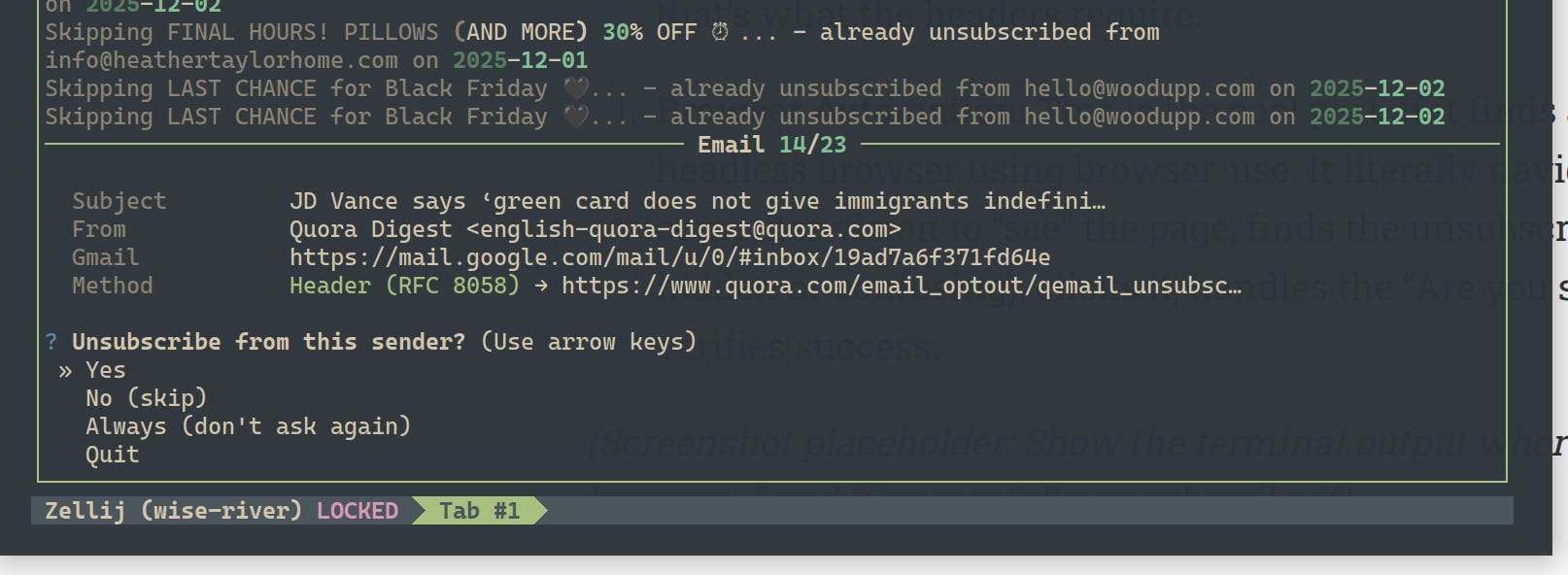
The tool looks at everything in that Unsubscribe label and goes to work on multiple fronts:
One-Click Unsub: If the email supports the modern standard (RFC 8058), it just sends the command. Done.
The “Mailto” method: It will craft and send an unsubscribe email for you if that’s what the headers require.
Browser Automation: This is the cool part. If it finds a link, it spins up a headless browser using browser-use. It literally navigates to the page, uses computer vision to “see” the page, finds the unsubscribe button (even if it’s hidden or confusing), clicks it, handles the “Are you sure?” prompts, and verifies success.
If it succeeds, it moves the email to an Unsubscribed label so you have a record. If it fails (because some sites are truly broken), it marks it Unsubscribe-Failed so you can deal with it later.
It’s Not For Everyone (Yet)
I want to be honest: this is currently a tool for developers or power users. There is no shiny “Install” button.
To get this running, you need to:
Set up a Google Cloud Project: You need to create OAuth credentials to let the script access your Gmail.
Get API Keys: You need an API key for Gemini, Claude, or OpenAI.
Install Python: You need to know your way around a terminal slightly.
It’s not “super friendly” for basic folks yet. It requires some setup. But once it’s running? It saves hours of clicking and scrolling.
Why I Built It
I built this primarily because I needed it. But I also wanted to test the limits of modern AI coding workflows. Using Cursor and the latest models, I was able to scaffold, refine, and polish this tool in roughly 24 hours. It felt less like writing code line-by-line and more like directing an orchestra of intelligent agents.
It handles:
State Tracking: It remembers what it’s tried, so it doesn’t loop forever.
Dark Patterns: The browser agent is surprisingly good at navigating those “I want to stay subscribed” vs “No, really, let me go” trick questions.
Rate Limits: It respects API quotas so you don’t get banned.
Give It a Shot
If you are technical and tired of spam, give it a spin.
License: MIT (Open source, do what you want with it)
I’m open to contributors! If you want to help make the installation easier or improve the browser agent, send a PR.
And if this tool saves your sanity, you can **buy me a coffee** (or sponsor me on GitHub).
Now, if you’ll excuse me, I have a few thousand more emails to nuke.
Can't wait to try it out. Feature request: can it suggest or create high-level filtering labels? E.g. you give it your last year's worth of emails and it creates categories for stuff that recurs? And maybe tries to create labels and filters for your review similar to the unsubscribed/unsubscribe-failed functionality?